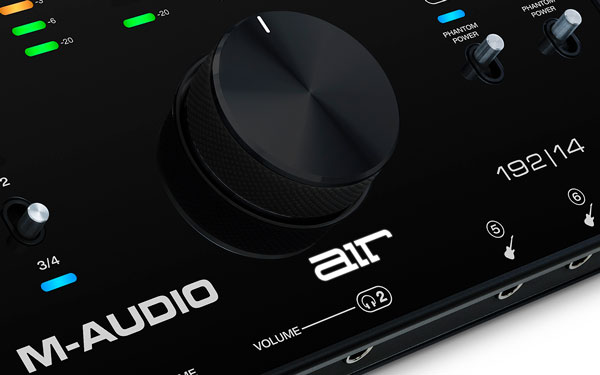
M-Audio developed MX Core DSP technology to enhance the recording experience and help you capture better performances. MX Core DSP is built into the Fast Track Ultra and Fast Track Ultra 8R USB 2.0 audio interfaces, and offers several innovative features that can improve the quality of your productions. Let’s take a closer look at the main benefits of MX Core DSP, and see how it can improve a typical recording session. Note: Both Fast Track Ultra and Fast Track Ultra 8R offer the same powerful MX Core DSP technology. Unless otherwise stated, the features apply to both audio interfaces.
Zero-Latency Monitoring |
|
 |
All digital audio workstations (DAWs) introduce a certain amount of latency. This presents a challenge, especially when recording vocals—the singer hears his own voice “live,” as well as the delayed, processed signal coming back from the DAW. The resulting delay makes it difficult to maintain proper pitch and timing. MX Core DSP solves this problem by letting you monitor directly through the Fast Track Ultra interface, before any latency is introduced by the host CPU. Just open the control panel and select which live inputs and software returns you want to hear while recording. By monitoring your live inputs before they pass through the computer, you’ll enjoy a much more natural recording experience. |
| Fast Track Ultra/Ultra 8R control panel |
|
Monitor with effects—without taxing your CPU |
 |
A little reverb or delay in the headphone mix can make a huge difference in a vocalist’s performance. It’s the same reason people love to sing in the shower—that nice echoey effect makes the voice sound larger than life and infuses a big dose of confidence. However, using DAW-based reverbs will tax the CPU and cause unwanted latency. To solve this issue, Fast Track Ultra features on-board MX Core DSP effects processing on all eight inputs and eight software returns. The best part is that Fast Track Ultra provides these effects without introducing latency or consuming valuable CPU power. Since all the MX Core DSP functionality takes place inside the interface itself, you don’t need a super-powerful computer to monitor with effects. Just open the control panel, select the appropriate channels, and turn up the effects send until you hear the right amount of reverb or delay. |
| Control panel settings |
Create Multiple Monitor Mixes Most computer-based DAWs like Pro Tools M-Powered, Live, Cubase and Sonar have built-in software mixers that allow you to monitor live inputs and pre-recorded tracks. However, when recording multiple musicians, it can be a hassle to set up unique monitor mixes for everyone. Fast Track Ultra makes it easy by providing a sophisticated virtual mixer inside the software control panel. This allows the engineer to set up headphone mixes that are tailored to each performer. It’s like having an extra mixer outside of your digital audio workstation. In the Studio with MX Core DSP Fast Track Ultra 8R features eight preamps with Octane technology, so it’s an ideal audio interface for recording bands. Let’s take a look at a typical recording project and explore how to utilize Fast Track Ultra 8R and MX Core DSP technology.
Session #1 Record drums, bass and guitars |
|
|
Diagram |
 Monitor mix 1/2 — with software returns muted |
For a typical recording session, you’d probably start by connecting drum mics on channels 1-4, bass on channel 5, and guitars on channels 6 and 7. Using the Fast Track Ultra 8R control panel, it’s easy to set up different monitor mixes for each musician. Click on each mixer tab and select the volume, panning and effect levels for each channel. Maybe the drummer wants to hear more bass and less guitars while the bassist wants extra reverb on the guitar channels. It’s all possible thanks to MX Core DSP technology—and with virtually no latency.
|
Note: When you monitor directly through Fast Track Ultra 8R, you’ll need to mute the software returns to avoid hearing the signal twice. You can do this by either muting the appropriate tracks in your DAW, or muting the software returns in the control panel monitor mix.
Session #2 Record lead vocals |
|
 |
You’ve recorded the band on tracks 1-7, so now it’s time to record lead vocals. You want the singer’s headphone mix to sound as good as possible. Instead of draining valuable CPU resources to launch reverb plug-ins in your DAW, use the Fast Track Ultra 8R interface’s MX Core DSP effects. Simply open the control panel, select the software returns for your previously recorded tracks and turn up the effects sends. You can adjust the reverb type and parameters to get just the right sound. Now you’ve given the singer a semi-polished mix—complete with reverb—without even beginning to tax the host computer. |
| Recording vocals on channel 8 |
|
Session #3 Recordbackground vocals |
|
 |
The background singers might want to hear a completely different monitor mix while recording. Fortunately, the Fast Track Ultra 8R control panel lets you save settings every step of the way. You can adjust the mix after each overdub and completely recall the previous settings later. Since each control panel tab represents an individual mix, you can change channel solo, mute, level and panning—without altering the mix you’ve created in your DAW. |
| Monitor mix 3/4 — background vocalist |
|
MX Core DSP is available exclusively on the M-Audio Fast Track Ultra and Fast Track Ultra 8R USB 2.0 audio interfaces. For more information, check out the Fast Track Ultra and Fast Track Ultra 8R product pages or visit your local M-Audio dealer. |